Guide v14 · 14 October 2026 · for IP2X 0.3.14 (build 5)
What you need
An iPhone
The IP2X app runs here. It starts every workout and uploads your data.
An Apple Watch paired to it
It records your heart rate and wrist motion, and buzzes if your heart rate goes over your limit.
The TestFlight app
Apple's free app for installing test versions. Get it from the App Store on your iPhone.
An invite from us
An email or a link from the IP2X team. Send us the Apple ID email you use on your iPhone so we can add you.
Accept the invite and install
Install TestFlight
Get TestFlight from the App Store on your iPhone, if you don't already have it.
Open the invite on your iPhone
Open the email from TestFlight on the iPhone itself and tap View in TestFlight. If we sent you a link, just tap the link.
Accept, then Install
TestFlight shows IP2X. Tap Accept, then Install.
Check the watch app is on your watch
The watch app comes with the phone app. If it isn't on your watch after a minute, open the Watch app on your iPhone, scroll to Available Apps, and tap Install next to IP2X.
1Keep the app up to date
Updates come in two sizes, and you'll handle each a little differently.
For a small update: tap the card
The app looks for small updates when you open it and again each time you come back to it. Once one has downloaded, this card appears at the top of the home screen (never while a session is running). Tap it and the app restarts on the new version:
No card? Give the app a moment in the foreground, or do it by hand:
- When we tell you there's an update, open IP2X and leave it open for about 30 seconds while it downloads.
- Close it completely: swipe up from the bottom of the screen and pause to see the app switcher, then flick IP2X up and away.
- Open it again. That launch runs the new version.
- Check you're on it: the app shows its code version on the home screen and at the bottom of Settings. It should match the version we sent you. If it doesn't, do steps 1–3 once more.
For a big update: install it from TestFlight
When a big update is waiting for your phone, the home screen shows this card instead. Tapping it opens TestFlight:
- Open the TestFlight app.
- Find IP2X and tap Update. The watch app updates along with it, which can take a few minutes.
- Open IP2X. If a small update is waiting for the new build, the home screen shows A small update is ready within a minute; tap it. Until then the code version can read untagged. That's expected.
- The version number has gone up. Run Check my setup once to confirm the phone and watch still work together, and allow anything the watch asks for.
- Updating to 0.3.14? The first launch asks a few questions about you, once, then goes to your home screen. The Health sheet may show once more, with new rows for date of birth, sex, height and weight. Allow it.
Please install big updates soon. Small fixes only reach the newest version, so an old install quietly stops getting them. Tip: in TestFlight, open IP2X and turn on Automatic Updates, and big updates install by themselves.
2Allow every permission, on the phone and the watch
Without these, a session looks fine on screen but records nothing, and the app can't always tell you why. There are three permissions, and they come at different moments:
- Say yes to every sheet. If you tap "Don't Allow" by mistake, iOS won't ask again. Turn it on yourself: iPhone Health app → your picture (top right) → Apps → IP2X → turn on all categories.
- If the watch asks during a session, allow both prompts on your wrist and keep going. Your phone app closes when you allow Motion & Fitness. That's iOS, not a crash: open IP2X again and it rejoins the session. Afterwards run Check my setup once, so you see Ready to record.
- Changing a permission in Settings makes the app restart. That's iOS, not a crash. Just open it again.
- Pressed End on the phone but the watch still shows the workout? Press End on the watch as well. We're fixing this.
The phone can't see what you allowed on the watch, so Check my setup is how you find out. Aim for Ready to record.
First launch
Tell us your name
The first screen says Welcome to IP2X and asks What's your name? Your name is how we label your data, and nothing else.
Your name is tied to this phone. Once it's set, the app won't let you change it, so your history stays yours. If you ever reinstall, type exactly the same name. If the app says the name is already in use, or you're moving to a new phone, tell us and we'll sort it out.
Tap Let's get set up
The screen tells you what happens next: your phone asks for health access, we ask a few questions about you, we find your recent data and upload it, we check your setup.
Allow health access
iOS shows the Health permission sheet. Turn on everything it asks for and tap Allow. The sheet now lists date of birth, sex, height and weight as well: the app reads them so some of the next answers are filled in for you.
On a brand-new install the sheet can appear before you've typed your name. Allow it, then type your name and carry on. It won't ask twice.
Answer a few questions about you
Eight questions, one per screen: when you were born (month and year), your sex at birth, your height, your weight, which wrist wears the watch, your dominant hand, how often you train, and whether you take medication that affects your heart rate. The first screen says why: they help us read your heart rate fairly and map your watch's movement. Tap I agree, continue.
Scroll each wheel to your answer and tap Next; on the last one, tap Save. Every question needs an answer, and Prefer not to say counts as one. Height and weight start in feet and stones; tap the toggle for cm and kg. Anything Health already knew is filled in for you, so just check it. Your age sets your heart-rate limit unless you've set one yourself in Settings.
Open IP2X on your watch and allow both prompts
The watch asks for permission twice, at different times. It asks for Health the first time you open the watch app. It asks for Motion & Fitness the first time it records motion, which is your first set or the setup check. Allow both on your wrist. Until both are allowed, sessions won't record.
After the setup check, the app shows a short three-card guide and offers a Practice session. Practice runs the whole flow (watch, timer, reps, upload) but never counts. It's a good way to try things out.
Check my setup
Check my setup runs automatically during onboarding. It's also on the Session screen whenever you want it. It takes about half a minute: it tests the phone's upload, then runs a short session on the watch. Wear the watch while it runs. If the watch asks for Motion & Fitness during the check, tap Allow on your wrist.
What the marks mean
A ? is not a failure. Some things, like whether you granted Health access, iOS never tells an app directly. The check only says ✓ once it has actually seen the data arrive.
The three possible results
Ready to record
Everything that applies to your setup is working. You're good to train.
Mostly ready
Nothing is broken, but something couldn't be confirmed yet. Read the rows marked ?. This is common right after installing, before any health data has come in. Run it again in a few minutes.
Something needs fixing
Sessions may not record properly. Each row marked ✕ says exactly what to do. Do that, then tap Run again.
What each row checks
| Row | What it means | If it isn't ✓ |
|---|---|---|
| Phone can reach the server | Your phone is online and uploads are getting through. | Check Wi-Fi or mobile data. If the server was asleep, run it again in a minute. |
| Phone is collecting health data | Health records are actually arriving on the phone. | Often a ? on a fresh install. If it keeps saying nothing arrived, check Health → Sharing → IP2X. |
| Watch is paired with the app installed | Your iPhone can see a watch with IP2X on it. | Install IP2X on the watch from the Watch app on your iPhone. |
| Watch answered the phone | The watch started a short session when the phone asked. That also proves the watch's Health permission is granted. | Open IP2X on the watch and allow the Health permission sheet. |
| Motion & Fitness granted on the watch | The watch is allowed to record your wrist motion. | "Not asked yet" is normal the first time. Allow it on the wrist when asked. If it was refused: on the watch, Settings → Privacy & Security → Motion & Fitness → IP2X. |
| Motion data reaches the phone | Wrist motion from the watch made it across to your phone. | Keep the phone and watch close and run it again. If it still fails, restart the watch and try once more, then tell us. |
Train, and count your reps honestly
Tell the app how you're wearing the watch
Above Start session, the app asks How are you wearing the watch? Set Wrist LeftRight and Crown toward HandElbow. It remembers your answer from last time, so usually you only check it. How to tell.
Start on the phone, always
Tap Start session in the app. The watch starts by itself. You don't need to touch it.
Pick an exercise
Tap one of the seven tiles below, or Other › to search the full list. Tap the picture to watch a short demo.
Start, do your set, tap Done
Tap Start, do your set with the watch on, then tap Done.
Enter your reps, then tap Real or Spoof
The app asks How many reps were you able to do? Enter the true number, including 0. Your honest count is what the system learns from.
Then it asks Was this a real set, or a spoof? There's no default: tapping Real or Spoof is what saves the set. Nearly every set is Real. When to tap Spoof.
End the session, then leave the app open briefly
Tap End session. Your data only syncs while the app is open, so keep it open for a few seconds afterwards. You'll see a line like "Recorded 24 minutes of motion and heart rate ✓". That means your data is saved.
The seven featured exercises
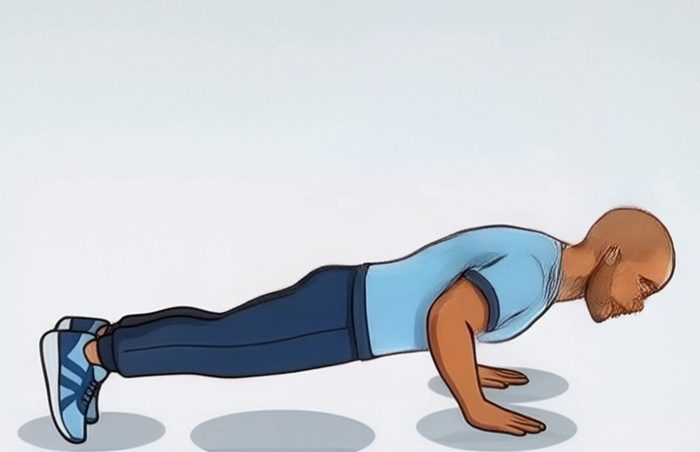
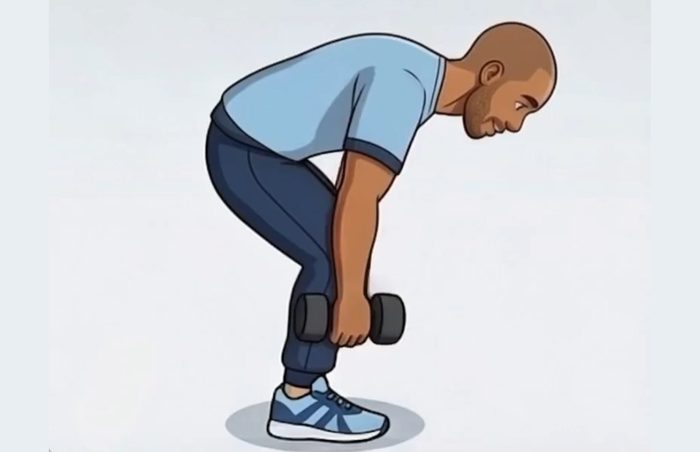
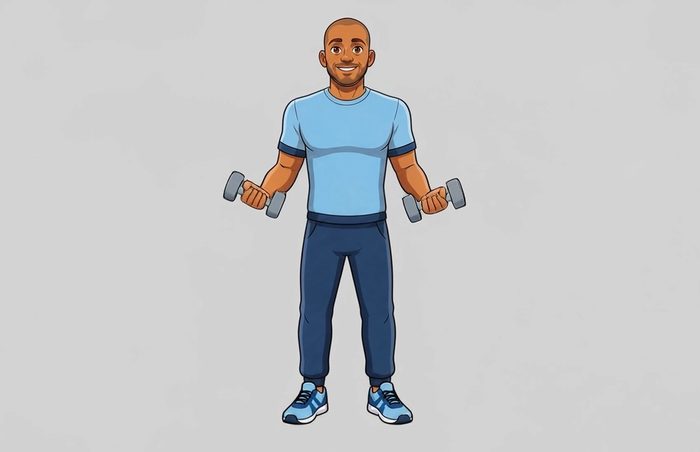
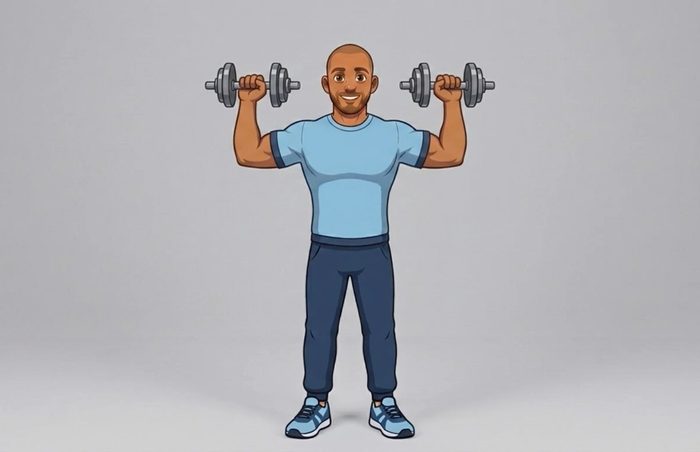

Wrist and crown, checked before every session
The same movement looks different to the watch depending on which wrist it's on and which way round it sits. Telling the app lets us line the motion up before we count reps. The crown is the dial on the side of the watch.
Look at your watch with your arm out in front of you. The crown points toward your fingers.
Crown toward: Hand
The crown points back toward your elbow. Common if you wear the watch "upside down" or on the other wrist.
Crown toward: Elbow
Wrist is simply the arm the watch is on: Left or Right.
Swapped mid-session? The exercise screen has the same two settings under How you're wearing the watch. Change them there; the change applies from that exercise on, and next session starts from it.
Real or Spoof: say what actually happened
We're building a system that can tell a genuine set from a faked one. To learn that, it needs examples of both, each labelled truthfully by the person who did it. A spoof isn't a mistake or a cheat. It's data we want, and you're free to do as many as you like.
You did the exercise you picked, properly, and the rep count is true. This is almost every set.
You deliberately faked it. For example:
- moving the watch arm through the motion without the effort or the weight
- doing a different exercise from the one you picked
- entering more reps than you did
Spoof whenever you like, but always label it Spoof. A faked set saved as Real teaches the system the wrong thing.
Count only the reps your watch arm did
The watch can only feel the arm it's on. We're teaching the system to count reps from that wrist's motion, so the number you enter has to describe what that wrist did. A rep done by your other arm leaves no trace on the watch. If you count it anyway, the motion and the number no longer match, and the system learns the wrong thing.
Alternating or one arm at a time (for example alternating bicep curls). You did 8 with each arm.
Enter 8, not 16.
Both arms move together (push-up, squat, sit-up, a two-handed press). The watch arm does every rep.
Enter the reps you did, e.g. 6.
A one-arm set with the non-watch arm. The watch arm stayed still.
Enter 0. Better still, swap the watch over or do that set with your watch arm.
If something's off
The app sits on "Starting…" after the first launch
That's the old version packed into the install, doing a long first read. Close the app completely and open it again. Nothing is lost.
"Watch did not confirm the session"
Usually a watch permission hasn't been allowed yet. Open IP2X on the watch and allow the Health sheet. Do one warm-up set with your wrist up so the Motion & Fitness prompt appears, then allow it. Then run Check my setup.
"Motion data isn't reaching the phone — keep the watch close."
Keep your phone near you while you train. If it keeps happening, restart the watch (hold the side button, drag Power Off, then hold it again to turn it back on) and run the check.
The session summary says no motion was recorded
Restart the watch app, run Check my setup, and tell us. A watch that has stopped sending data doesn't show any error, and a restart almost always fixes it.
I closed the app, or it restarted, in the middle of a session
You don't lose anything. Your logged sets are already saved, and the watch keeps recording through the gap. When you reopen the app, it picks the watch back up by itself. Anything not uploaded yet goes up the next time the app is open and online.
My workout isn't showing up
Data only syncs while the app is open. Open IP2X after your session and leave it open for a few seconds.
Looking in the Fitness app (or Health → Workouts)? Your IP2X session isn't listed under the name IP2X. Look for Functional Strength Training; tap it and you'll see IP2X as the source.
The Health sheet popped up before I'd typed my name
A timing quirk on a brand-new install. Allow it, then type your name and carry on. It won't ask again.
I want to change one of my answers
Open Settings, find Your answers and tap Edit. Change what you need and tap Save on the last screen.
The app won't let me change my name
That's deliberate: your name is tied to this phone so your history stays yours. If you need it changed, or you're moving to a new phone, tell us.